Start Hyperscale services
To access Hyperscale Application Manager:
-
From a supported web browser, navigate to the Hyperscale Compliance engine appliance URL. When prompted, log in with your credentials:
Username: Username for the setup login
Password: Password for the setup login -
From the Setup Dashboard page, select Hyperscale Configuration. This redirects you to the Hyperscale Application Manager Swagger UI.
(To return to the Setup Dashboard page, select Setup Dashboard).
Access the Hyperscale Application Manager APIs from a curl request
-
Create an API session and log in to Hyperscale Compliance System Setup. You can follow the documentation at API cookbook: authentication
-
Get the JSESSIONID from the previous step.
-
Include the JSESSIONID with every Hyperscale Application Manager API request’s cookie. i.e., JSESSIONID=<session-id-of-system-setup-api-session>
-
For example, to get the connector properties list, we can use the below sample curl request:
curl -X 'GET' \

  'https://<hyperscale-compliance-host>/resources/ham/api/v1.0.0/connector-properties' \

  -H 'accept: application/json' \

  -H 'Cookie: JSESSIONID= <session-id-of-system-setup-api-session> '
In the Hyperscale Application Manager Swagger UI, all API requests don’t include the cookie in the corresponding curl request commands. You will need to add it manually if you are copying the curl request from the Swagger UI request.
API flow to start Hyperscale Compliance
The following is the API flow for configuring Connector Properties, uploading an Instant Client (applicable only to Oracle connectors) and starting the Hyperscale Services.
-
Configure Connector Properties
-
Upload Instant Client (Oracle connector only)
-
Start Hyperscale Services
The following are sample API requests/responses for a typical Hyperscale Application Manager API workflow. The APIs can be accessed using a swagger-based API client by accessing: https://<hyperscale-compliance-host-address>/ham
You must be logged in to Setup Application before accessing the Hyperscale Application Manager API flow.
Connector Properties API
POST /connector-properties (To create application properties for the given connector)
Request:
{
    "connector_type": "ORACLE",
    "properties": {
      "NFS_STORAGE_MOUNT_TYPE": "NFS4",
      "NFS_STORAGE_HOST": "10.110.195.187",
      "NFS_STORAGE_EXPORT_PATH": "/domain0/appdata_container-2/appdata_timeflow-3/datafile",
      "NFS_STORAGE_MOUNT_OPTION": "rw",
      "EXECUTION_STATUS_POLL_DURATION": 10000
    }
  }
Response:
{
    "id": 1,
    "connector_type": "ORACLE",
    "properties": {
      "NFS_STORAGE_MOUNT_TYPE": "NFS4",
      "NFS_STORAGE_HOST": "10.110.195.187",
      "NFS_STORAGE_EXPORT_PATH": "/domain0/appdata_container-2/appdata_timeflow-3/datafile",
      "NFS_STORAGE_MOUNT_OPTION": "rw",
      "EXECUTION_STATUS_POLL_DURATION": 10000
    }
  }
Instant Client API (Oracle connector)
POST /instant-client (Upload an instant client zip file)
Request:
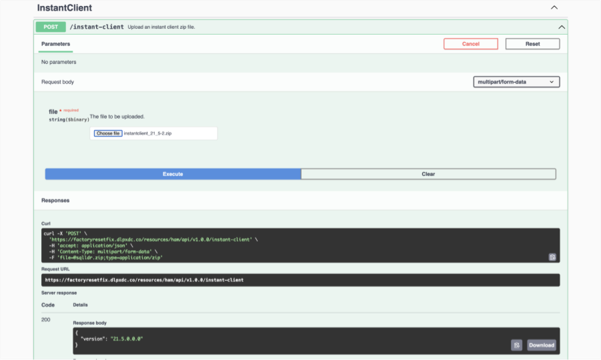
Upload an instant client zip file from the browser. For instructions, refer to Installation and setup (Docker Compose)
Make sure to follow the above steps, zip the folder, and use it to upload.
Response:
{
  "version": "21.5.0.0.0"
}
Start Hyperscale Services API
Example:
If you initially deployed Hyperscale Services using an Oracle connector and later restart them with an MSSQL connector, the system will remove all Oracle-related Hyperscale Services data and create a new MSSQL-based Hyperscale Services deployment.
POST /hyperscale-services (Start hyperscale services for the given. connectorPropertiesId)
Request:
{
"connector_properties_id": 1
}
Response:
{
  "id": 1,
  "connectorPropertiesId": 1,
  "status": "STARTING"
}
POST /hyperscale-services (Start hyperscale services for the given. connectorPropertiesId)
Request:
{

"connector_properties_id": 1

 }
Response:
{
  "id": 1,
  "connectorPropertiesId": 1,
  "status": "STARTING"
}
Get the Hyperscale Services API key
Request:

Response:
{
  "apiKey": "1.lSKSyVIoB5f3On4IetrFQa8K8eHRb14AdxbjavWhqbjHNmOKYsVt6Mu9mY3hac4k",
  "url": "https://<hyperscale-host-address>/hs",
  "status": "RUNNING"
}